- Treat bounce rate as a warning light, not a target: it signals weak intent match, slow speed, confusing layout, or dead-end pages.
- Use GA4 engagement metrics and explorations to pinpoint where users drop off by page, device, and traffic source.
- Most bounce problems are mobile problems, so audit your Webflow mobile layout for readability, tap targets, and above-the-fold clarity.
- Match your hero headline to the promise that earned the click, then make the next step obvious with clear, persistent CTAs.
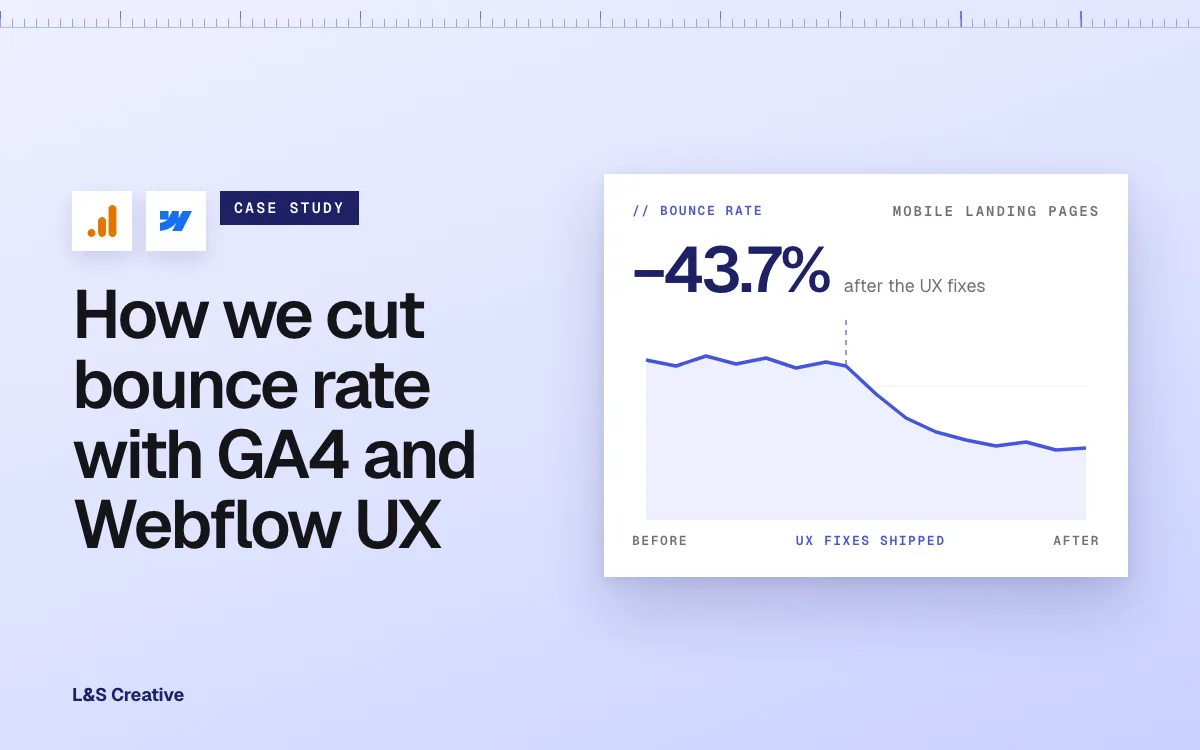
- Following this GA4-to-Webflow UX process cut bounce rate by 43.7% on a real client's mobile landing pages.
I hope you enjoy this guide. If you'd like my team to audit your analytics and Webflow UX so you can reduce your bounce rate and increase conversions, you can book a quick strategy call with us.
You spend time and money driving traffic.
People click your ad, land on your site, and then… vanish.
No scroll. No clicks. No leads. Just gone.
A high bounce rate does not only sting a little. It quietly kills revenue. It usually means your page is out of sync with visitor intent, confusing to use, or simply not compelling enough to stick around.
The good news is that bounce rate is very fixable.
Tools like Google Analytics 4 (GA4) and Webflow give you everything you need to figure out where people are dropping off and why. Once you have that, you can redesign the experience and keep visitors engaged.
In this guide, I'll walk you through the exact process we used to reduce bounce rate by 43.7% on a Webflow site. We did it by spotting mobile drop-offs in GA4 and fixing the UX step by step. You will see how to build simple custom reports, interpret the data, and turn those insights into concrete Webflow improvements.
What Is Bounce Rate in 2025?
Traditionally, bounce rate meant the percentage of sessions where a user visited a single page and left without doing anything else. One page. One exit. One bounce.
That definition created a lot of confusion:
- What if a user finds exactly what they needed on that one page?
- What if they spend five minutes reading your article, feel satisfied, then close the tab?
- Is that really a bad visit?
This is part of why Google Analytics 4 (GA4) shifts the focus from bounce rate to engagement.
In GA4, you will mainly look at:
- Engagement rate: The percentage of sessions that count as "engaged."
- Engaged session: A session that lasts at least 10 seconds, has 2 or more pageviews, or includes a conversion event.
- Average engagement time: How long users are actively engaged with your site.
You can still approximate bounce rate if you want to, but it is usually more helpful to ask:
- Are users doing anything on the page?
- Are they scrolling, clicking, or converting?
- Which segments are engaged, by device, traffic source, and landing page?
High bounce or low engagement is rarely the real problem. It is a sign that something deeper is not working in your traffic, message, or experience.
Why High Bounce Rates Are a Symptom, Not the Real Problem
It is easy to stare at your analytics and think:
"Our bounce rate is 72%. We need to reduce our bounce rate."
The problem is that "reduce bounce rate" is not an action. It is an outcome.
Instead, treat bounce rate like a warning light. It tells you where to look, not what to fix.
High bounce rates can come from a few common issues:
- Weak or misleading intent match
- The promise in your ad or search result does not match what people see on the page.
- Slow performance, especially on mobile
- If your site loads slowly or feels clunky, visitors will not wait around.
- Confusing layout or navigation
- If visitors cannot quickly tell what your page is about and what to do next, many will leave.
- Thin, generic, or irrelevant content
- People arrive with a specific question or job to be done. If your content does not deliver, they will not scroll.
- No obvious next step
- Even if the content is good, a lack of internal links and calls to action turns your page into a dead end.
When we work with clients, we do not just ask, "How do we push this metric down?"
We ask:
- Did the visitor get what they came for?
- Did we clearly show them what to do next?
- Was the experience smooth, especially on mobile?
That shift in thinking is exactly what led to the 43.7% bounce rate reduction in the case study below.
Our 43.7% Case Study: Fixing Mobile Drop-Offs on a Webflow Site
To make this real, here is the process we used for a recent client project.
The Problem
A client came to us with a familiar story:
- Traffic was healthy.
- The content was solid.
- But key landing pages had very high bounce rates, especially on mobile.
They were investing in paid and organic channels, but engagement did not reflect the quality of the traffic they were paying for.
What We Found in GA4
We did not make any guesses. We went straight into GA4.
Here is what we looked at:
- Landing pages, broken down by device category
- Engagement metrics like engagement rate and average engagement time
- Funnel and path explorations to see where people were dropping off
The pattern was clear:
- Desktop users were performing reasonably well.
- Mobile users were struggling.
On mobile, we saw:
- Much lower engagement rates
- Sessions ending after just a few seconds
- Poor scroll depth, with many people not making it past the hero section
They were not reading the content. They were not exploring other pages. They were landing and leaving.
What We Changed in Webflow
With that data in hand, we switched over to UX and design work inside Webflow.
Here is what we changed:
- Simplified the hero section on mobile
- We tightened the headline and subheadline so they clearly stated what the company does and who it is for. We also made sure the primary CTA was visible without any scrolling.
- Improved readability
- We increased font sizes, adjusted line spacing, and added more breathing room so the page felt comfortable on a phone.
- Reduced visual noise and heavy interactions
- We removed or softened animations that caused stuttering on mobile and delayed some non-essential scripts so the page felt faster.
- Reordered sections
- We moved the most important value propositions and social proof higher on the page so visitors would see them within the first few scrolls.
- Made the next step obvious
- We added a clear, persistent CTA for mobile visitors and made sure key sections had in-line calls to action.
The Outcome
Over the next several weeks, after launching those changes and continuing to refine based on data, we saw:
- A 43.7% decrease in bounce rate on the main landing pages
- A noticeable increase in engagement and time on page
- More visitors flowing into the next steps in the funnel instead of leaving right away
We did not start by trying to "optimize for bounce rate."
We started by seeing where users were dropping off, understanding why, and then rebuilding the Webflow experience around that.
You can follow the same process on your own site.
Step 1: Use GA4 to Find Where Users Are Dropping Off
You cannot fix what you cannot see. The first step is to figure out where and for whom bounce is a real issue.
Start With an Engagement Overview
In GA4, head to your Reports and open the Engagement section.
Look at:
- Engagement rate by page
- Average engagement time per session
- Events per session (such as scrolls, clicks, or other key actions)
You want to spot:
- Pages that have a lot of traffic but low engagement
- Pages that perform very differently on mobile and desktop
These pages are where you will likely get the biggest wins.
Build a Landing Page View by Device and Source
Often, bounce problems live at the intersection of page + device + traffic source.
Look at:
- Landing pages broken down by device category (desktop, mobile, tablet)
- Performance by session source/medium (for example, google / organic, facebook / cpc)
Ask yourself:
- Are mobile users bouncing more than desktop users on certain pages?
- Is a specific traffic source sending visitors who leave quickly?
- Do some pages work well for organic traffic but poorly for paid traffic?
In many cases, it is not that the entire site has a bounce issue.
It is that one combination of source, device, and page is letting you down.
Use Explorations for Funnels and Paths
GA4's Explorations are where you can get more detailed insights.
Two views that are especially helpful:
- Funnel exploration
- Define steps like:
- Step 1: Landing on a specific page or a group of landing pages
- Step 2: Key click (for example, "view_pricing", "cta_click")
- Step 3: Conversion event (signup, lead form, purchase)
- Look at where most people drop out, and check if that changes by device.
- Define steps like:
- Path exploration
- Start from a landing page and see what people do next.
- Do they move deeper into the site, or do most sessions end immediately?
In our 43.7% case study, the funnel showed that mobile users were disappearing right after the first section. That was a clear sign that the experience itself needed attention.
Step 2: Analyze Intent and Message Match
Once you know which pages are struggling, the next step is to understand why visitors feel out of sync.
A very common issue is intent mismatch: what people think they are clicking on versus what they actually see.
Make Sure the Promise Matches the Page
Compare these elements:
- The ad copy or search snippet (title and meta description) that brought visitors in
- The headline and first paragraph or two on your landing page
Do they line up clearly?
If your ad promises a Webflow UX audit but your hero talks vaguely about "innovative solutions," a lot of people will feel like they landed in the wrong place.
Make sure:
- Your headline echoes the main promise that got the click
- Your opening lines quickly confirm that visitors are in the right place and will get what they came for
Rewrite Your Hero Around One Clear Job
In Webflow, this usually means simplifying your hero section.
You can use a simple framework:
- Headline: Say what you do, in plain language.
- "We turn Webflow sites into high-converting sales engines."
- Subheadline: Say who it is for and the result they get.
- "We help SaaS and service brands improve conversions with Webflow UX and GA4 insights."
- Primary CTA: Give them a clear next step.
- "Book a free audit" or "Request a teardown"
If your hero is busy, filled with multiple messages, sliders, and vague CTAs, many visitors will leave before they even understand what you offer.
Step 3: Fix UX Issues (Especially on Mobile & Webflow)
Now it is time to translate data into design and UX changes.
Audit Your Mobile Layout in Webflow
Most bounce issues we see today are primarily mobile issues.
In Webflow, open your key pages in the mobile breakpoint and look at:
- Readability
- Are your fonts big enough?
- Is line spacing comfortable?
- Are long paragraphs broken into sections with headings and bullet points?
- Tap targets
- Are buttons easy to tap?
- Are links spaced far enough apart so people do not tap the wrong thing?
- Above-the-fold clarity
- Is the hero focused on one clear message and CTA?
- Or is it crowded with menus, sliders, and competing elements?
Your goal is to make it very easy for a mobile visitor to understand three things within a few seconds:
- What you do
- Why they should care
- What to do next
Optimize Webflow Interactions for Speed and Clarity
Interactions and animations are a big part of why people love Webflow. They can also slow things down if you are not careful.
On mobile, consider:
- Disabling or simplifying heavier animations
- Avoiding large, complex visuals at the very top of the page
- Delaying non-essential scripts and third-party widgets
You want the page to feel light and responsive. Even a small delay or stutter can be enough for someone to give up and close the tab.
Make the Next Step Obvious
Every important page needs a clear "what now," especially on a phone.
Think about:
- A sticky or persistent mobile CTA, such as a bottom bar for high-intent pages
- In-line CTAs in your content, for example "See our pricing" or "View case studies" after you explain a benefit
- CTAs that focus on the outcome, not just "Contact us"
On the project where we cut bounce by 43.7%, the biggest wins came from simple changes. Larger text. Less clutter. Obvious paths forward.
Step 4: Improve Internal Linking and On-Page Engagement
Bounce rate is higher when pages feel like dead ends. You want to create clear paths and options.
Add "Next Step" Internal Links to Every Key Page
For your most important pages, make sure each one points visitors towards logical next steps.
Examples:
- From a blog post:
- Link to relevant service pages or case studies
- Link to related blog posts that dive deeper into specific questions
- From a high-level service page:
- Link to "How it works," pricing, or success stories
- Link to a lead magnet, such as a checklist, template, or audit request
Use descriptive anchor text rather than "click here," such as:
- "Webflow UX checklist"
- "GA4 engagement audit"
- "See how we reduced bounce by 43.7%"
Break Up the Page With Engaging Elements
Long walls of text can feel intimidating and tiring.
Improve scannability by:
- Using clear subheadings (H2 and H3) that describe the content
- Turning lists into bullet points or numbered steps
- Adding visuals when they help:
- Screenshots of GA4 reports
- Before and after layouts from your Webflow projects
- Simple diagrams of user flows
The goal is not only to keep people on the page longer. It is to help them get value faster, which naturally leads to better engagement.
Step 5: Test, Measure, and Iterate
Reducing bounce rate is an ongoing habit, not a one-off project. Think of it as a cycle: measure, improve, repeat.
Set Clear Targets and Timeframes
Instead of a vague goal, pick something specific, like:
- "Reduce bounce rate on /pricing by 20% in the next 30 days."
- "Increase engagement rate on our main Webflow landing page by 15%."
Track:
- Engagement rate and average engagement time
- Scroll depth
- Click-through to next steps
- Conversion rate (leads, signups, purchases)
A/B Test Key Elements
You do not need to redesign everything at once. Start with smaller tests.
For example, test:
- Different hero headlines and subheadlines
- CTA copy and placement
- The order of sections (such as moving testimonials higher on the page)
- Mobile layout changes, like removing a slider or simplifying navigation
Make changes in Webflow, then watch the impact in GA4. Let the data tell you which choices actually improve engagement.
FAQs
What is a good bounce rate for my website?
There is no single "good" bounce rate that applies to every site. It varies by industry, traffic source, and page type. A better approach is to:
- Compare pages against each other on your own site
- Look at performance by device and channel
- Watch how metrics change over time as you make improvements
If your most important pages consistently sit above around 70 to 80 percent bounce, that is usually a sign to investigate.
Does a high bounce rate hurt my SEO?
Search engines do not use traditional "bounce rate" from your analytics tool as a direct ranking factor. However, they care about user satisfaction and relevance.
Pages that fail to engage visitors often:
- Do not attract many links
- Do not get shared
- Do not convert
When you improve bounce rate, you are usually improving content quality, UX, and usefulness. That often supports better SEO over time, even if the bounce metric itself is not part of the algorithm.
How can I reduce my bounce rate specifically on mobile?
A few places to start:
- Check GA4 to see if mobile metrics are worse than desktop
- Improve readability with larger fonts, better spacing, and shorter paragraphs
- Simplify mobile navigation and clarify your hero content
- Reduce heavy animations and non-essential scripts on mobile
- Make sure your main CTA is visible and easy to tap
In our recent project, focusing on mobile UX alone led to a 43.7% reduction in bounce rate.
Can I improve bounce rate on a Webflow site without a developer?
Yes. One of the benefits of Webflow is that marketers and designers can:
- Edit copy and headings
- Reorder sections
- Adjust spacing and typographic styles
- Turn interactions on or off
You may want a developer for deeper performance work, but many of the changes that lower bounce rate are content and layout decisions that you can make directly in the Designer.
Final Thoughts & Next Steps
Bounce rate is not your main enemy. It is a signal.
When you align:
- The promise that gets the click
- The message on your page
- The experience visitors have, especially on mobile and on Webflow
your engagement metrics tend to improve naturally.
Use GA4 to find where people are dropping off.
Use Webflow to improve the experience.
Use ongoing testing to keep getting better.
If you would like us to run the same process we used to cut bounce by 43.7%, from GA4 analysis to Webflow UX fixes, book a free 20-minute audit. We will show you exactly where visitors are dropping off and what to fix first.