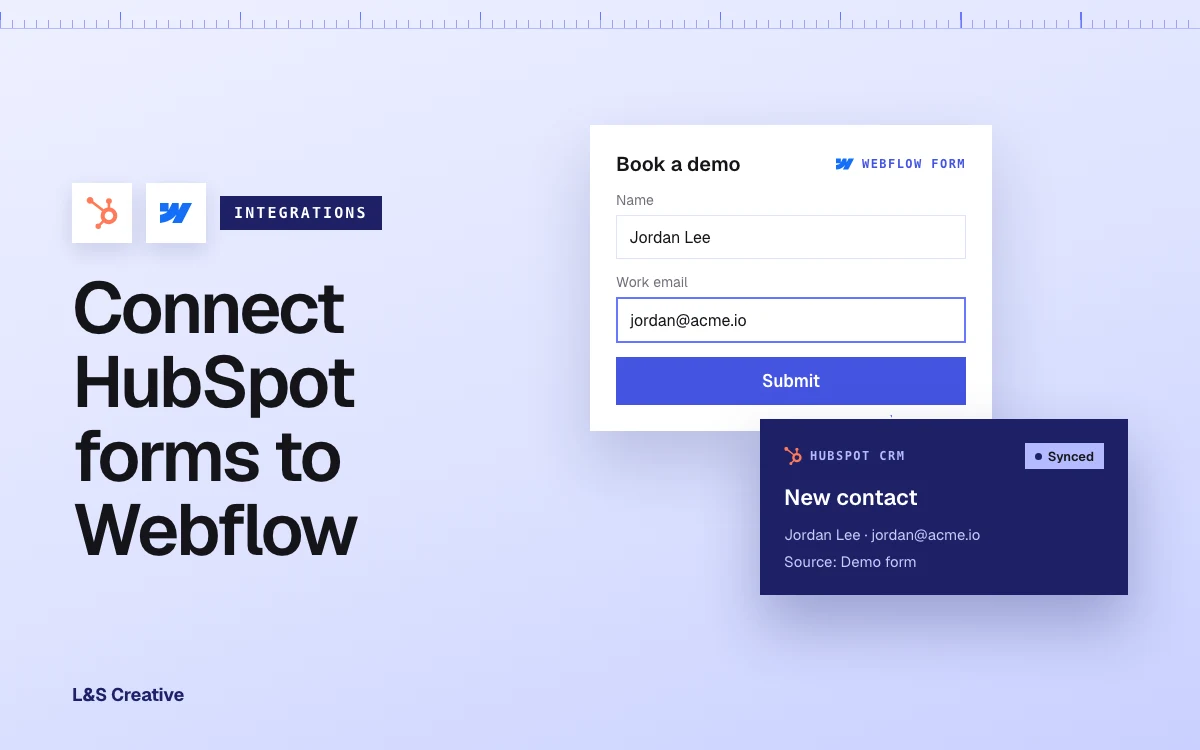
- There are five proven ways to connect HubSpot and Webflow, and the right choice depends on whether you prioritize styling, simplicity, or flexibility.
- For the fastest setup, embed a HubSpot form using its HTML snippet or the Webflow HubSpot app and style it inside HubSpot.
- For full design control, build the form natively in Webflow and connect it through the HubSpot app or via Zapier.
- The HubSpot v2 Webflow app is the most official, future-proof option, letting you embed, style, and connect forms three ways.
- Always test on your live domain, map required fields like email, and avoid duplicate contacts by sticking to one integration path per form.
Key Takeaways
- There is no single “right” way to connect HubSpot and Webflow. The best method depends on whether you care more about styling, simplicity, or flexibility.
- The fastest way to get started is usually embedding a HubSpot form using its HTML snippet or the Webflow HubSpot app.
- For full design control, you can build the form natively in Webflow and either connect it directly through the HubSpot app or send submissions via Zapier.
- You can style HubSpot forms in two ways:
- Inside HubSpot’s Style & Preview tab
- With your own CSS targeting HubSpot’s form classes (when not in an iframe)
- The new HubSpot v2 Webflow app lets you embed, style, and connect forms in three ways, and is the most “official” and future-proof option right now.
We get asked this all the time: “Can you hook up our HubSpot forms to Webflow?”
Short answer: yes. In this guide, I’ll walk you through five proven ways we use at our agency, with pros, cons, and when to use each.
HubSpot is your CRM and marketing brain.
Webflow is your front-end and UX canvas.
When the two are not talking to each other, you lose leads, tracking, and the ability to see which pages or campaigns are actually working.
The good news is that connecting HubSpot and Webflow is much easier than most people think. The harder part is choosing the right integration method for your use case.
In this guide, we’ll cover:
- How to embed a basic HubSpot form in Webflow
- How to style that form with CSS (without breaking it)
- How to use Webflow’s native forms and push data to HubSpot
- How to integrate Webflow forms with HubSpot via Zapier
- How to use the official HubSpot App for Webflow
By the end, you’ll know exactly which approach to use for your site, and you’ll have step-by-step instructions to set it up.
The tools you will need:
- A HubSpot account
- A paid Webflow account since you will need to add custom code
When to Use Which Method
Before we dive into step-by-step tutorials, here’s a quick decision guide.
Use Method 1 (basic embed) if:
- You want the fastest setup possible.
- You’re fine styling the form mostly inside HubSpot.
Use Method 2 (CSS styling) if:
- You’re already embedding HubSpot forms and want them to match your Webflow design more closely.
- You’re comfortable writing CSS or working with a developer.
Use Method 3 (Webflow form + HubSpot app) if:
- You want full Webflow styling control but still prefer a native integration without middleware.
- You want to map Webflow form fields directly to HubSpot contacts and properties.
Use Method 4 (Webflow form + Zapier) if:
- You’re already using Zapier for other automations.
- You need flexible workflows like “create a contact, add them to a list, and trigger a workflow” when a Webflow form is submitted.
Use Method 5 (HubSpot app managing HubSpot forms) if:
- You build forms primarily inside HubSpot, but want to visually embed and style them in Webflow.
- You like the idea of managing forms centrally in HubSpot while letting Webflow handle layout and styling.
If you only remember one thing:
For maximum design control, use Webflow forms + HubSpot (App or Zapier). For maximum simplicity, embed HubSpot forms (directly or via App).
Method 1: Embed a Basic HubSpot Form in Webflow
This is the classic “drop a HubSpot form into Webflow” approach. It’s quick and reliable.
Step 1: Create or open your form in HubSpot
- Log into your HubSpot account.
- Go to Marketing → Forms.
- Create a new form or edit an existing one (e.g., “Contact form” or “Newsletter signup”).
Step 2: Grab the embed code
In the forms dashboard:
- Hover over your form and click Edit if you need to adjust fields.
- When ready, click Embed (or Actions → Embed depending on your UI).
- Copy the HTML/JS snippet HubSpot gives you. It will look similar to:
Step 3: Add an Embed element in Webflow
- In Webflow, open your site and go to the page where you want the form.
- Drag an Embed element (from the “Components” section) into the layout.
- Paste the HubSpot embed code into the Embed element.
- Save & close, then publish your site.
After publishing, you should see the HubSpot form appear on the live page.
Pros
- Quick to set up
- Keeps HubSpot as the single source of truth for forms
- Supports advanced HubSpot form features (progressive profiling, conditional logic)
Cons
- Styling is mostly controlled by HubSpot, not Webflow
- Some embed modes use iframes, which limits your ability to style fields with external CSS
If you want more design control while still using HubSpot forms, keep reading.
Method 2: Style Your HubSpot Forms With CSS
This is where a lot of people get stuck:
“We embedded the form, but it looks nothing like the rest of our site.”
There are two main ways to improve the styling.
Option A: Use HubSpot’s built-in styling
Inside the HubSpot form editor:
- Open your form.
- Go to the Style & Preview tab.
- Adjust:
- Font family and size
- Colors
- Button styles
- Field widths and spacing
- Publish or update the form.
This is the safest option if you don’t want to deal with CSS at all. It applies consistently wherever that form is embedded.
Option B: Use custom CSS in Webflow
If you need your form to match your Webflow design more closely, you can target HubSpot’s form classes with custom CSS.
Important: This works best when your HubSpot form is not rendered inside an iframe, or when you use the new “developer embed” mode via the HubSpot app, which allows styling directly in Webflow.
Step 1: Inspect the form
- Open your published page in Chrome.
- Right-click on a form field and choose Inspect.
- Note the classes used, such as .hs-form, .hs-input, .hs-button, etc.
Step 2: Add custom CSS in Webflow
In Webflow:
- Go to Project Settings → Custom Code → Head (or add a <style> block in an Embed element).
- Add CSS
- Publish and refresh the live page to see your changes.
Step 3: Use Webflow classes on the container
You can also style the Embed wrapper using standard Webflow classes:
- Set max-width, margins, padding
- Place the form in a card / grid layout
- Adjust spacing relative to other content
This combination (HubSpot styling + CSS + Webflow container design) usually gets you very close to a fully “on-brand” form.
Method 3: Use Webflow Native Forms With the HubSpot App
If you love Webflow’s form styling and want to keep everything native inside your layouts, this method is for you.
Webflow’s official HubSpot app lets you connect Webflow form elements directly to HubSpot, without needing Zapier or custom scripts.
Step 1: Install the HubSpot App in Webflow
- Go to the Webflow Apps marketplace.
- Search for “HubSpot” and select the official app (HubSpot v2).
- Click Install and grant the requested permissions.
- Connect your HubSpot account when prompted.
Step 2: Build your form in Webflow
On your Webflow page or template:
- Add a Form Block.
- Add and configure fields as usual (Name, Email, Company, etc.).
- Style everything with your normal Webflow classes.
Step 3: Connect the Webflow form to HubSpot via the app
Within the HubSpot app UI in Webflow:
- Open the HubSpot App.
- Choose the site and page where your form lives.
- Select the native Webflow form you want to connect.
- Map each Webflow field to the corresponding HubSpot property:
- Name → firstname/lastname or fullname
- Email → email
- Any custom fields → matching HubSpot custom properties
- Save the mapping.
Now, when someone submits the Webflow form, the HubSpot app sends that data into HubSpot as a contact, respecting the mapping you set up.
Why this is a great option
- You keep full design control in Webflow.
- No Zapier or custom middleware is needed.
- It’s an officially supported integration path, which is good for reliability and long-term support.
At our agency, this is often our default for new Webflow builds that need to talk to HubSpot.
Method 4: Connect Webflow Forms to HubSpot via Zapier
Sometimes you want more flexibility than the app gives you:
- Add contacts to a specific list
- Trigger a workflow
- Update deals or custom objects
- Or sync to multiple tools at once
That’s where Zapier shines.
Zapier has a ready-made integration to send new Webflow form submissions to HubSpot forms or contacts.
Step 1: Prep your Webflow form
- Build and style your form in Webflow as usual.
- Publish your site so Zapier can detect your forms.
Step 2: Create a Zap in Zapier
- Log into Zapier and click Create Zap.
- Set Webflow as the Trigger app.
- Choose trigger event: New Form Submission.
- Connect your Webflow account, then choose:
- Workspace
- Site
- Specific form
Test the trigger to pull in a sample submission.
Step 3: Add HubSpot as the Action
- Add an Action step.
- Choose HubSpot as the app.
- Choose what you want to do:
- Create Contact
- Create or Update Contact
- Create Form Submission (depending on the integration options you see)
- Connect your HubSpot account.
Step 4: Map your fields
Map Webflow fields → HubSpot fields, for example:
- form_data.email → email
- form_data.name → firstname or lastname
- form_data.company → company
You can also set:
- List membership
- Lifecycle stage
- Custom properties like lead_source or webflow_page_url
Step 5: Test and turn it on
- Send a test Webflow submission.
- Confirm that a contact is created/updated in HubSpot.
- Turn the Zap On.
From now on, every Webflow form submission triggers the Zap and syncs to HubSpot automatically.
Pros
- Very flexible workflows
- Easy to extend later (e.g., also send data to Slack, Google Sheets, etc.)
Cons
- Adds a third-party dependency
- Zapier costs can add up at scale
We use this when clients already live in Zapier or need cross-tool automation.
Method 5: Use the HubSpot App to Add and Manage HubSpot Forms
The newer HubSpot v2 Webflow app lets you go beyond “copy and paste an embed code.” It supports:
- Embedding existing HubSpot forms (like Method 1, but visually)
- Using the developer embed to style HubSpot forms directly in Webflow
- Connecting native Webflow forms (like Method 3)
Think of it as the central control panel for all things HubSpot forms on your Webflow site.
Example: Embedding an existing HubSpot form via the app
After installing the app:
- Open the HubSpot app panel in Webflow.
- Choose Add existing HubSpot form (wording may vary slightly).
- Select the element on your page where you want the form (e.g., a div block).
- Pick the HubSpot form from the dropdown.
- Choose whether to:
- Inherit HubSpot styling, or
- Embed an unstyled/developer version you can style in Webflow
- Click Add Form to Page.
You can now style that form container (and, with developer embed, the internal elements) with Webflow’s visual tools, while HubSpot still handles submissions and CRM data.
This is powerful when:
- Marketing wants to manage form fields in HubSpot
- Design/dev wants the form to visually fit the Webflow site 1:1
Common HubSpot + Webflow stuff to look out for
We’ve helped a lot of teams connect Webflow and HubSpot. Here are the issues that come up over and over:
1. Always test on the live domain
Zapier, HubSpot, and Webflow’s app integrations often rely on your published site and domain. Many issues disappear once you:
- Publish to your main domain (not just the staging subdomain)
- Submit a real test form there
2. Map required fields correctly
In HubSpot:
- Make sure your required contact properties (like email) are always mapped from your Webflow or HubSpot form.
- If a required property is missing, HubSpot will reject the submission silently or log an error.
3. Watch out for duplicate contacts
If you use Zapier or multiple integration methods at once, it is easy to:
- Create duplicate contacts
- Overwrite contacts with incomplete data
Use “Create or Update Contact” carefully and consider a clear field mapping strategy.
4. Keep validation consistent
If a field is required or has a specific format (like phone), try to:
- Enforce the same rules in Webflow (input types, required flags)
- Mirror them in HubSpot form settings where applicable
5. Don’t forget tracking and consent
If you’re in a region with privacy regulations (GDPR, etc.), think about:
- Consent checkboxes for marketing emails
- Linking to your privacy policy
- Using HubSpot’s tracking code and consent tools where needed
Common Webflow + HubSpot FAQs
Do I have to use the HubSpot app, or can I just paste the embed code?
You don’t have to use the app. You can absolutely:
- Paste the HubSpot form embed code into a Webflow Embed element (Method 1),
- Style it via HubSpot’s styling panel and/or custom CSS (Method 2).
The app just gives you a nicer, more integrated experience and makes mapping Webflow forms much easier.
Is it better to build forms in HubSpot or in Webflow?
It depends:
- Build in HubSpot if:
- You want marketing to control fields and logic
- You use progressive profiling and complex HubSpot features
- Build in Webflow if:
- You care a lot about pixel-perfect form UX
- You want forms to feel native to your Webflow design
You can then connect Webflow forms to HubSpot via the app or Zapier.
Can I use Zapier and the HubSpot app at the same time?
Technically yes, but be careful:
- You may end up sending the same submission twice to HubSpot.
- It’s better to pick one primary integration path per form and stick to it.
We usually:
- Use the HubSpot app for straightforward contact + property mapping.
- Use Zapier when we need orchestration across multiple tools.
Will Google index my HubSpot form embed?
Yes. The form itself isn’t “SEO content,” but Google can crawl the page, see your form, and still index the surrounding content. Embedding a HubSpot form via script or the app is standard practice.
What matters more for SEO is:
- Page load performance
- Content quality
- Internal linking and schema
Connecting HubSpot forms to Webflow doesn’t have to be fragile or mysterious.
Here’s the recap:
- For quick wins, embed a HubSpot form (Method 1) and refine styling in HubSpot/CSS (Method 2).
- For full design control, build forms in Webflow and connect them through the HubSpot app (Method 3) or Zapier (Method 4).
- For centralized form management, lean on the HubSpot app’s embedding and styling features (Method 5).
At our agency, we set these integrations up constantly for clients running Webflow + HubSpot. If you’d like someone to:
- Audit your current forms
- Clean up your field mappings
- Or fully connect Webflow and HubSpot (including GA4 and conversion tracking)
you can book a quick strategy call, and we’ll walk you through the best setup for your specific stack.